Assign permission sets
Permission sets control which TMS pages and actions a user can access.
Assign permission sets after the app is installed and licenses are assigned.
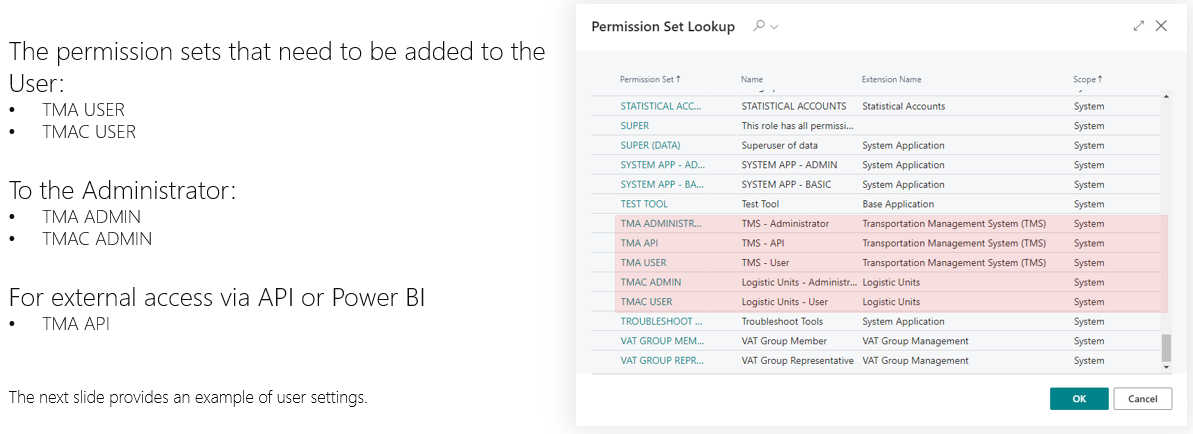
Which permission set to use
| User type | Permission set |
|---|---|
| Operations and finance users | TMS User |
| TMS administrators | TMS Administrator |
| API, Power BI, or integration users | TMS API |
| Custom role that works with Settlement | TMA Settlement |
| Capacity sourcing users, if enabled | TMA Capacity Sourcing |
Older permission sets with the TMA prefix can exist for compatibility. For new assignments, use the TMS permission sets unless your implementation guide says otherwise.
TMS User, TMS Administrator, and TMS API already include the complete TMA Settlement capability.
Settlement access is not divided by operation type: the same capability covers runtime processing, reconciliation,
reporting-currency revaluation, evidence review, posting, and archiving. Assign TMA Settlement
directly only when composing a custom role instead of using a standard TMS role.
TMS User also includes operational Instructions access. TMS Administrator adds maintenance rights for Instruction Types and master Instructions. The internal instruction capability sets are composed into these roles and normally should not be assigned directly.
Recommended assignment pattern
| Role | Recommended access |
|---|---|
| Forwarding coordinator | TMS User |
| Dispatcher | TMS User |
| Finance user | TMS User |
| Setup administrator | TMS Administrator |
| External integration account | TMS API |
Assign a permission set
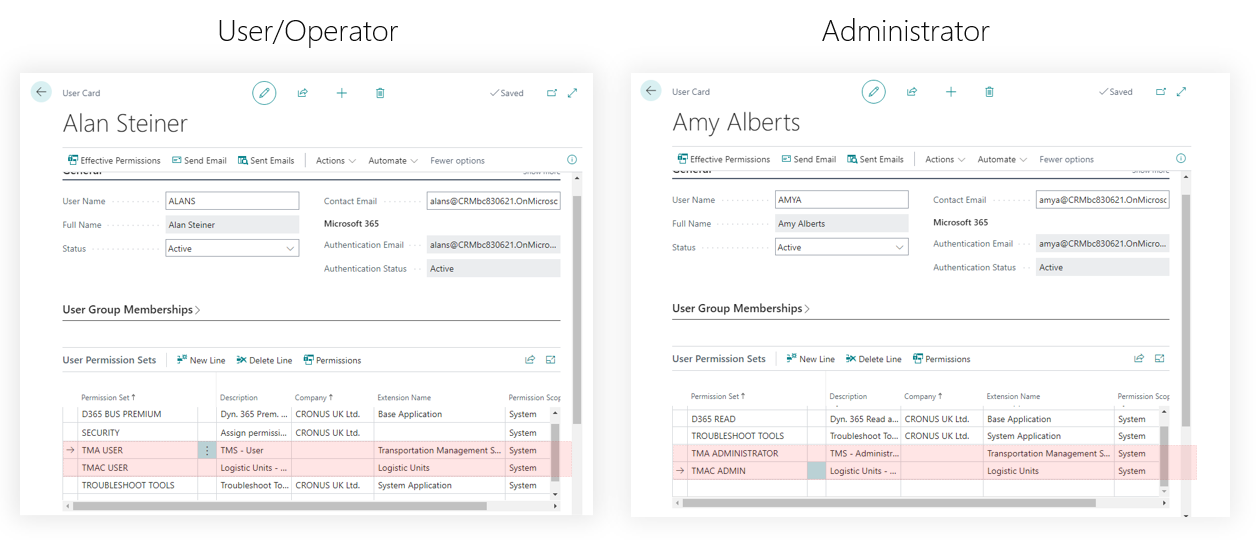
- In Business Central, search for Users.
- Select the user.
- Open User Permission Sets.
- Add the required TMS permission set.
- Repeat for each user who must work with TMS.
Verify
- Ask the user to sign out and sign in again.
- Search for Forwarding Orders.
- Confirm the page opens.
- Confirm the user can perform the expected task.
Troubleshooting
| Problem | What to check |
|---|---|
| User cannot open TMS pages | Check license assignment and permission set assignment. |
| User can open pages but cannot configure setup | Assign TMS Administrator if the user is responsible for setup. |
| API calls fail with permission errors | Use an integration account with TMS API and company access. |