Attachment Control
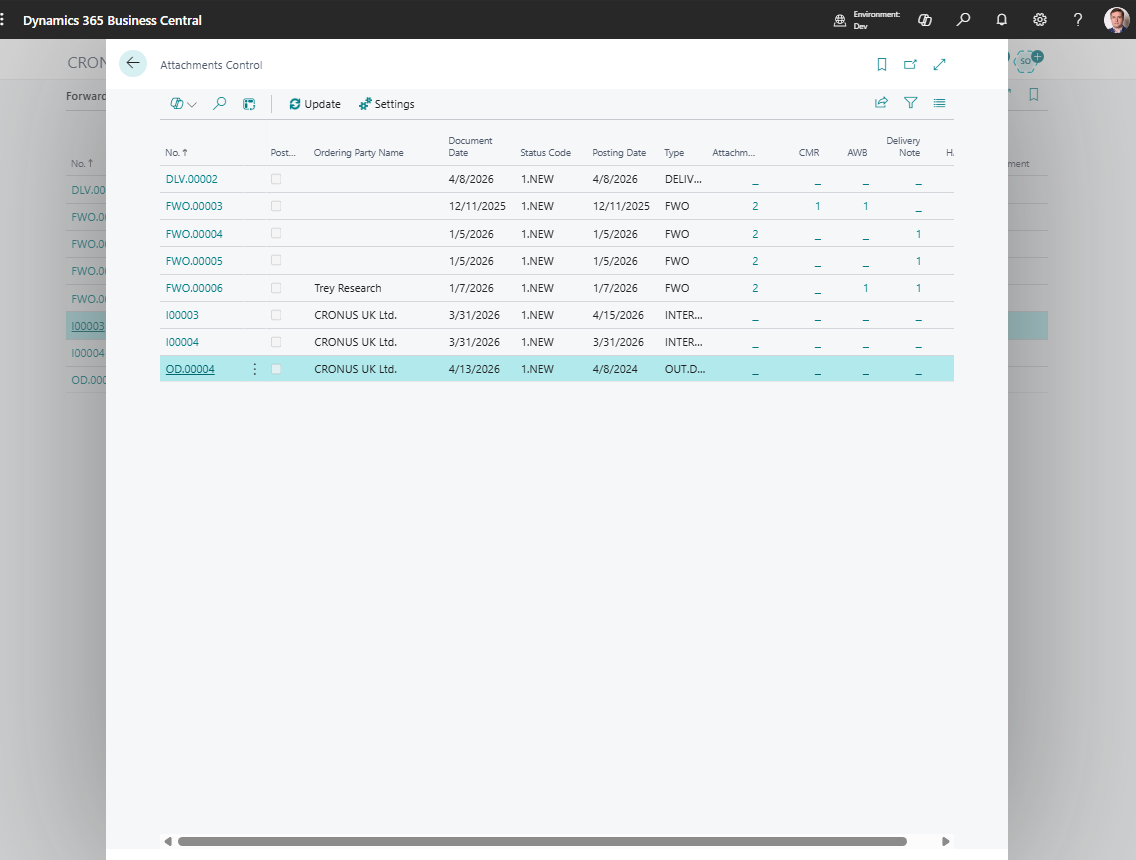
Use Attachment Control to monitor whether TMS documents have the files your process requires.
The page gives operations and compliance users one place to review attachment counts by document and category.
Before you start
Make sure that:
- attachment categories are created,
- status profiles are configured if attachments are required before status changes,
- users have permission to open document attachments,
- Azure Blob Storage is configured in TMS Setup if your company stores files outside the Business Central database.
What Attachment Control shows
| Column or area | Use it for |
|---|---|
| Document No. | Opens the source document or posted document. |
| Ordering Party | Shows who ordered the transportation job. |
| Status Code | Helps identify whether the document is ready for the next step. |
| Posting Date | Helps review posted history and audit periods. |
| Total Attachments | Shows the complete attachment count. |
| Category columns | Show counts for selected attachment categories. |
How to work in this page
- Open Attachment Control.
- Review the total attachment count for each document.
- Use category columns to find missing files.
- Drill down into a count to open filtered attachments.
- Choose Settings to change which categories are shown.
- Follow up with the document owner when required files are missing.
Attachment categories
Use Attachment Categories to classify files such as carrier confirmation, customs document, insurance certificate, invoice support, customer approval, or internal note.
Attachment categories are also used by status extended control. A status can require selected attachment categories before the Forwarding Order moves forward.
Good to know
- Attachment Control is a monitoring page. The source documents remain the place where users attach and review files in daily work.
- Category columns are configurable, so each company can monitor the document types that matter most.
- Attachment requirements are enforced through status setup, not through the monitoring page itself.
Troubleshooting
| Problem | What to check |
|---|---|
| A category column is empty | Check Settings and confirm the category filter is correct. |
| A user cannot open an attachment | Check user permissions and file storage setup. |
| Posting is blocked by missing files | Review the status profile extended control and attach the required categories. |
| Attachment count looks wrong | Refresh the page and check whether the file is attached to the expected document. |