Installation
Install TMS from Microsoft AppSource into your Business Central environment.
Before you start
You need:
- Business Central administrator access,
- an environment that allows AppSource apps,
- a company where TMS setup can be completed and tested.
Install the app
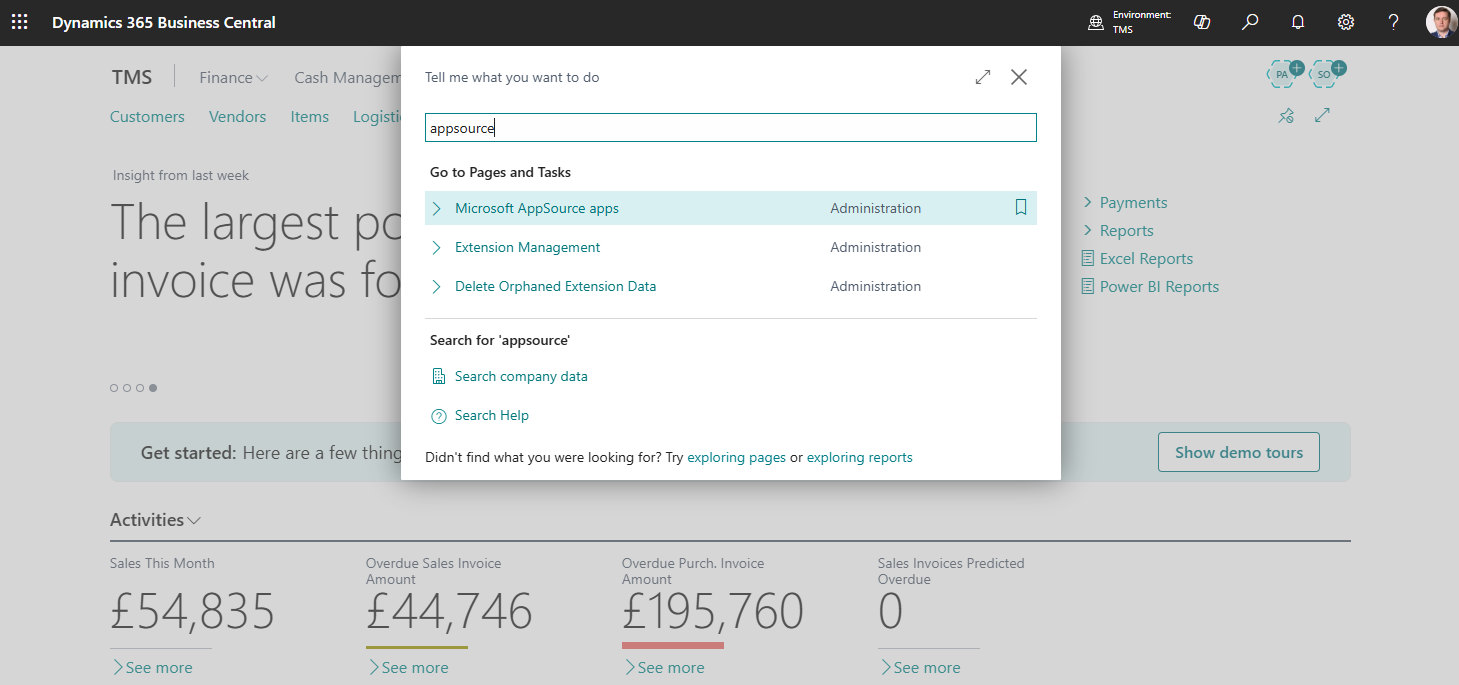
- In Business Central, search for Extension Marketplace.
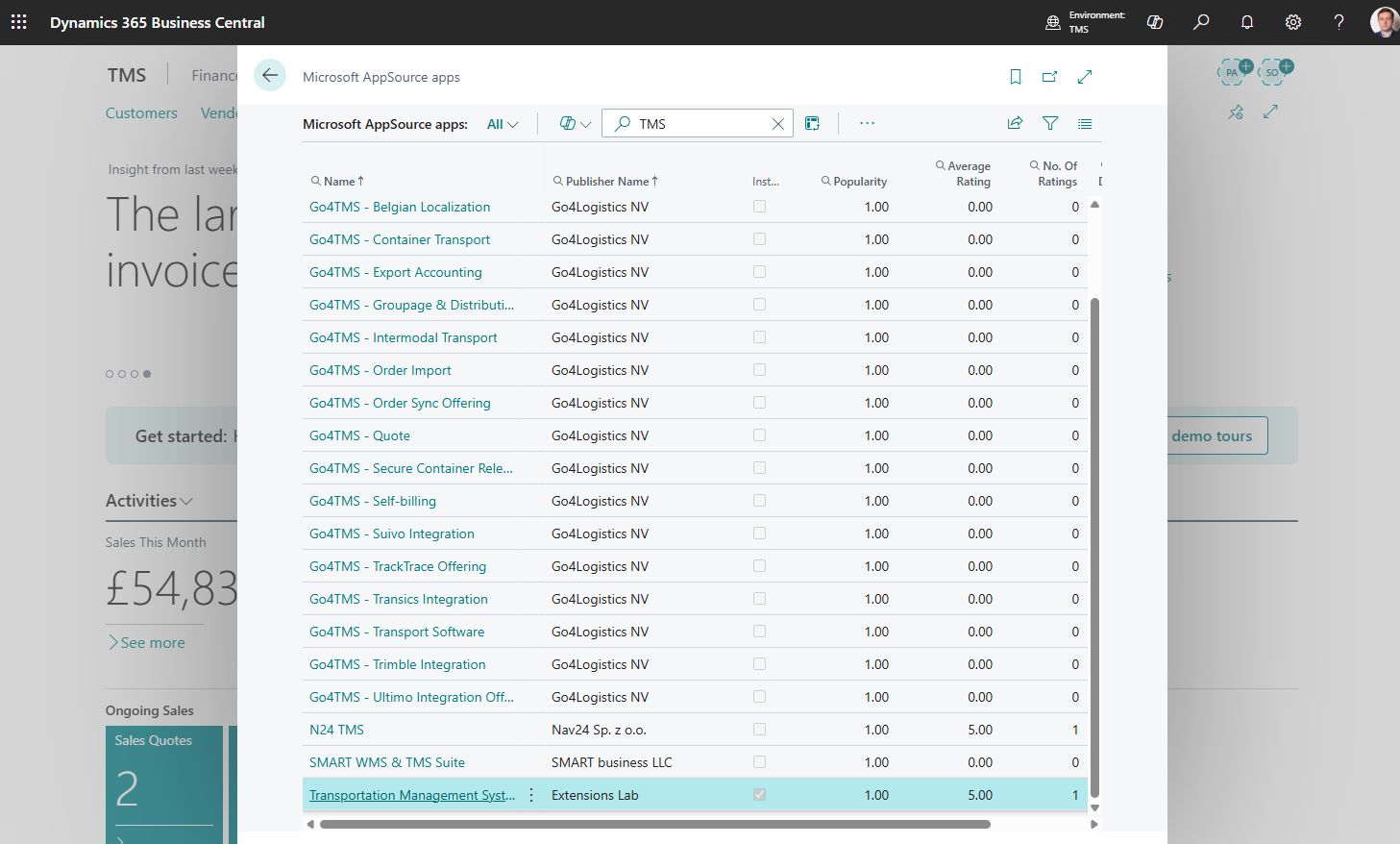
- Search for TMS for Logistics Service Providers.
- Open the TMS AppSource card.
- Choose Install from AppSource.
- Follow the AppSource installation prompts.
- Wait until the extension is installed.
What to do next
- Buy licenses.
- Assign permission sets.
- Open TMS Setup.
- Configure the required number series, statuses, stages, and forwarding order types.
- Configure Google Maps or Azure Maps if you use distance, duration, route display, or route optimization.
- Configure Azure Blob Storage if TMS attachments must be stored outside Business Central.
Verify the installation
- Search for TMS Setup.
- Confirm that the page opens.
- Search for Forwarding Orders.
- Confirm that the list page opens.
- Confirm that licensed users can open TMS pages with their assigned permission sets.
Troubleshooting
| Problem | What to check |
|---|---|
| TMS pages do not appear | Confirm the app is installed in the correct environment and company. |
| User cannot open TMS pages | Assign the correct TMS permission set and license. |
| Setup page opens but actions fail | Complete TMS Setup and required number series. |
| Upgrade stops while migrating the Azure Blob Storage key | Correct or rotate the existing key, then retry the upgrade. Migration leaves the old value intact when encrypted storage cannot save it. |